WHAT’S HAPPENING NOW





Subscribe Today
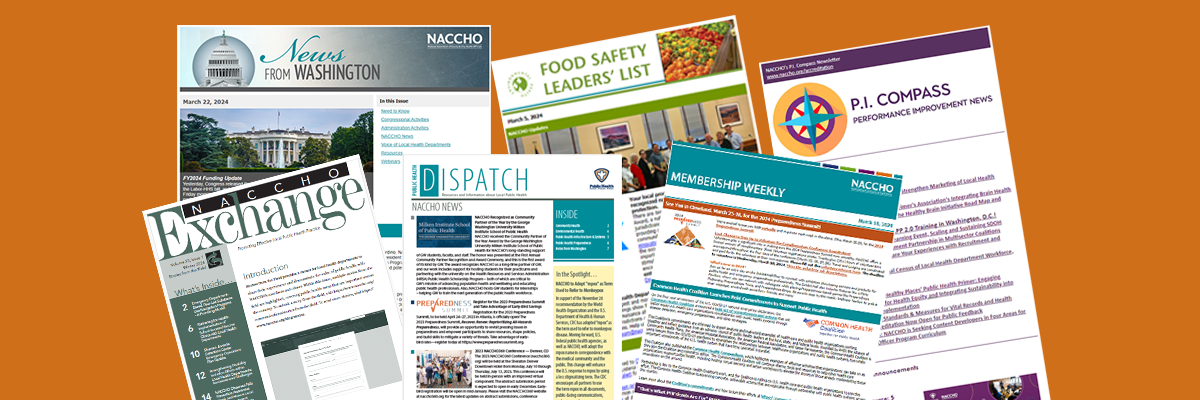
Subscribe to Our Newsletters
Log in or create an account to subscribe to our many newsletters, including NACCHO Connect.
Subscribe NowDirectory of Local Health Departments
Search for local health departments in your area
Go To Directory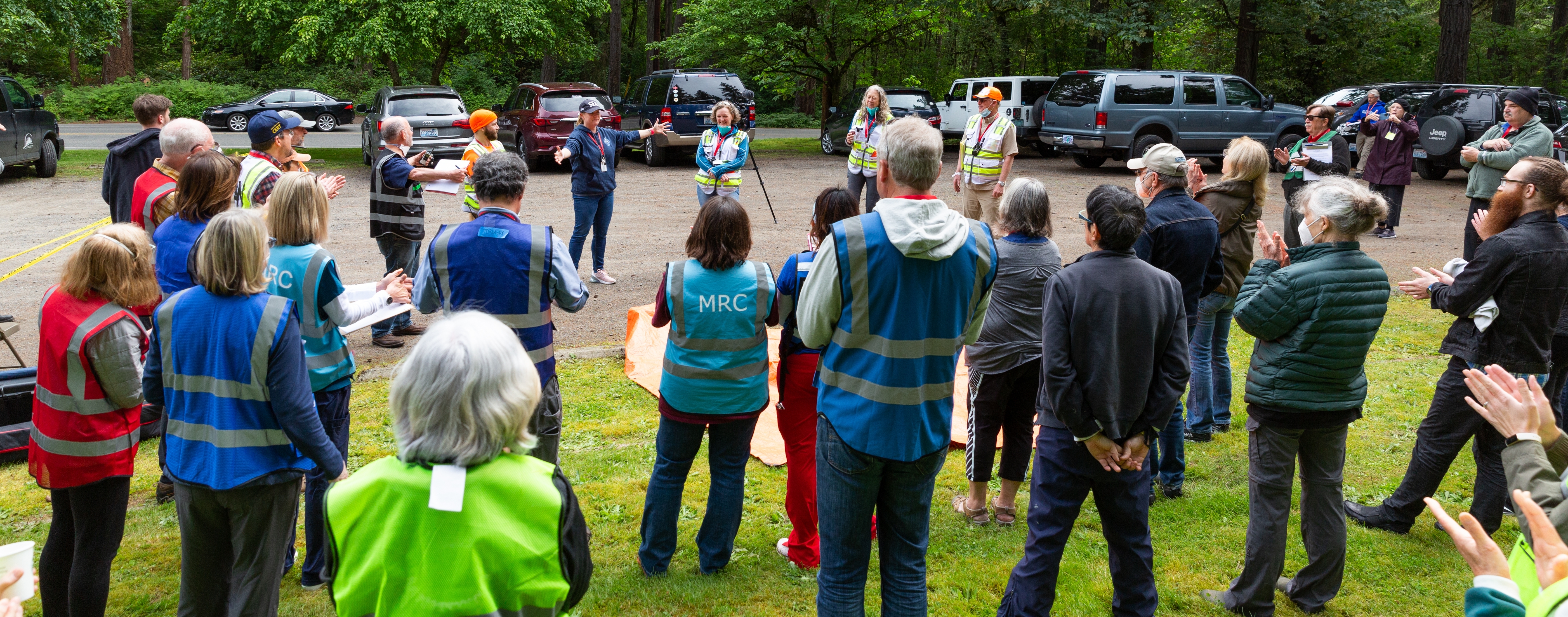
Apply Today
Funding Opportunities
NACCHO offers opportunities for local health departments to secure funding for various projects.
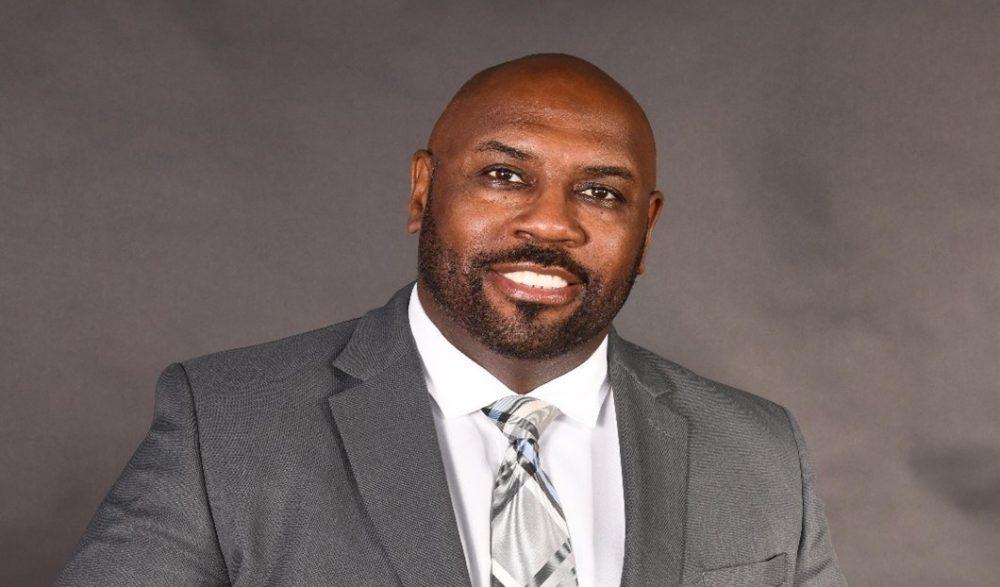
Learn MoreDamōn Chaplin
Health Commissioner, City of Minneapolis Department of Health
As a NACCHO Board Member and Vice President, I’m proud of the work we continue to do to support local health departments nationwide. NACCHO is the premier source of learning, knowledge, and future-oriented research for local public health. There is no other organization better positioned to advocate for local public health needs and resources than NACCHO, and I am proud to be an active member, partner and advocate for change.
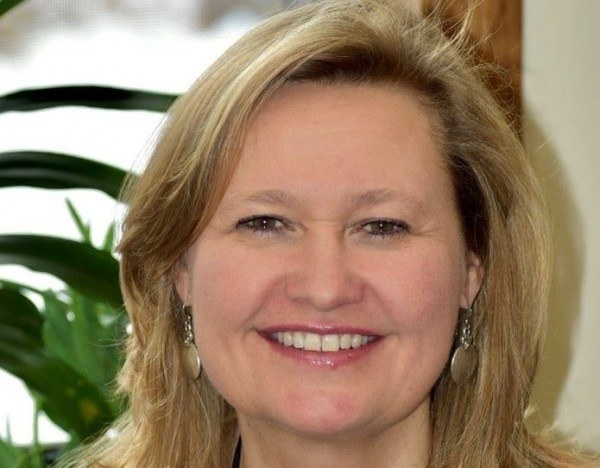
Jennifer Kertanis
Director of Health at Farmington Valley Health District
As a NACCHO Past President, I’m proud of the work we achieved during the pandemic. There is no other organization that better represents and advocates for the needs of local health departments.
Get Involved
Ready to take your department to the next level?
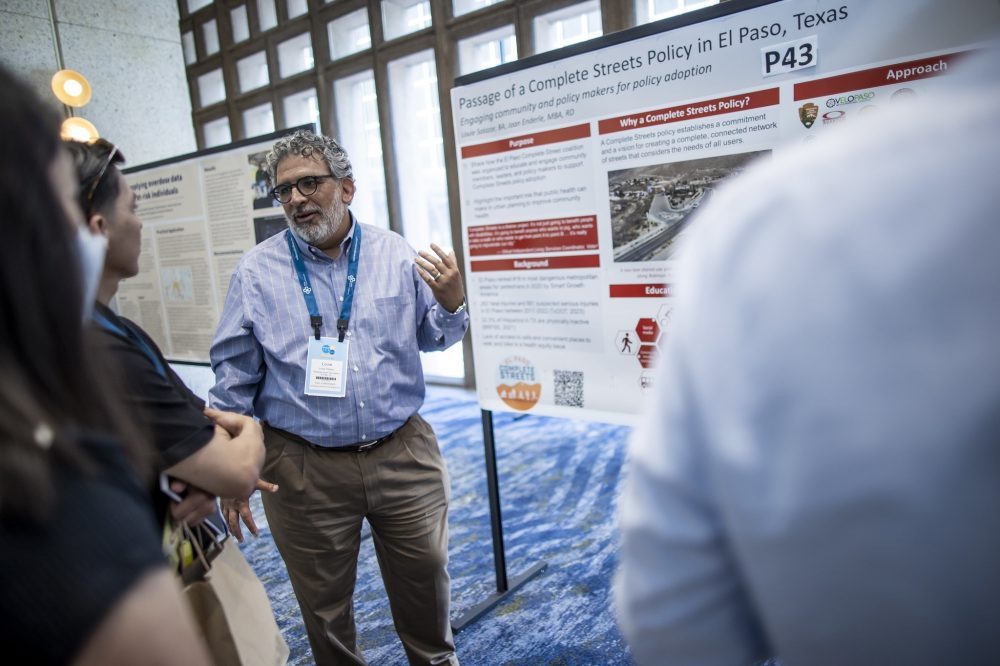
Improve your health department, improve your community. Become a NACCHO member today.
Become a Member